WSL-Specific Errors
These errors are specific to running MOSAIC on Windows Subsystem for Linux (WSL 2). For shared errors that apply to both platforms, see the parent Common Errors page.
box2d-py – “ModuleNotFoundError: No module named ‘swig’”
Error (when installing box2d environments):
Building wheel for box2d-py (pyproject.toml) did not run successfully.
swigging Box2D/Box2D.i to Box2D/Box2D_wrap.cpp
swig -python -c++ -IBox2D -small -O -includeall -ignoremissing -w201 ...
Traceback (most recent call last):
  File "/home/hamid/.local/bin/swig", line 5, in <module>
    from swig import swig
ModuleNotFoundError: No module named 'swig'
error: command '/home/hamid/.local/bin/swig' failed with exit code 1
Cause: A broken SWIG Python script exists at ~/.local/bin/swig that tries
to import a non-existent Python module called swig. This script shadows the
proper system SWIG binary at /usr/bin/swig.
The box2d-py package requires SWIG (Simplified Wrapper and Interface Generator)
to build its C++ extensions. When pip tries to build the wheel, it finds the broken
script first because ~/.local/bin appears earlier in PATH than /usr/bin.
Fix:
# Remove or rename the broken SWIG script
mv ~/.local/bin/swig ~/.local/bin/swig.broken

# Verify system SWIG is now being used
which swig    # Should show /usr/bin/swig or /bin/swig
swig -version # Should show SWIG Version 4.x

# Retry the installation
pip install -e ".[box2d]"
If system SWIG is not installed, install it first:
sudo apt-get install -y swig
Note
This issue occurs when a Python package (possibly installed via pip) created
a wrapper script at ~/.local/bin/swig instead of using the system SWIG.
The wrapper script is non-functional and must be removed to allow the proper
SWIG binary to be used.
Broken .venv (I/O errors on symlinks)
Error:
ls: cannot access '.venv/lib64': Input/output error
ls: cannot access '.venv/bin/python3': Input/output error
.venv/bin/python: No such file or directory
Cause: The venv was created with a Python interpreter that is no longer
available, or the symlinks inside .venv/bin/ are broken. This is
especially common on WSL when the venv is accessed from Windows tools
(PowerShell, Explorer, Git Bash) – Linux symlinks are not visible to Windows.
Fix: Delete and recreate the venv:
rm -rf .venv
python3.11 -m venv .venv
source .venv/bin/activate
Always create and use the venv from a native WSL terminal (not PowerShell or Git Bash). See Installation on WSL (Windows Subsystem for Linux) for details.
QRhiGles2 – “Failed to create temporary context”
Warning (repeated on console, may crash the GUI):
QRhiGles2: Failed to create temporary context
QRhiGles2: Failed to create context
Failed to create QRhi for QBackingStoreRhiSupport
QQuickWidget: Failed to get a QRhi from the top-level widget's window
QQuickWidget: Attempted to render scene with no rhi
Cause: Qt 6’s QQuickWidget uses the RHI (Rendering Hardware Interface) for GPU-accelerated rendering. On WSLg, hardware OpenGL contexts are not available through the virtual GPU, so RHI fails to create an OpenGL ES 2 context. This affects QML-based UI components (FastLane video panel) and can crash the GUI entirely.
This issue only affects WSL. Native Ubuntu with a real GPU and display server does not have this problem.
Fix: Add these lines to your .env file:
# Bypass RHI entirely -- use Qt's QPainter-based software renderer
QT_QUICK_BACKEND=software

# Fallback: if any non-Quick GL usage remains, force Mesa software GL
QSG_RHI_BACKEND=gl
LIBGL_ALWAYS_SOFTWARE=1
QT_QUICK_BACKEND=software tells Qt Quick to skip the RHI layer and use
the QPainter-based software adaptation of the scene graph. No OpenGL context
is needed at all. The main application window (QWidget-based) is unaffected
– only QML/Quick content (the FastLane video panel) uses this fallback.
Note
QSG_RHI_BACKEND=software is not a valid value (Qt will print
“Unknown key” and fall back to default). The correct env var for
software rendering is QT_QUICK_BACKEND=software.
Native Ubuntu users should keep the default .env.example values
(QSG_RHI_BACKEND=gl) or remove these lines entirely. Hardware-accelerated
rendering works correctly on native installs with NVIDIA/AMD drivers.
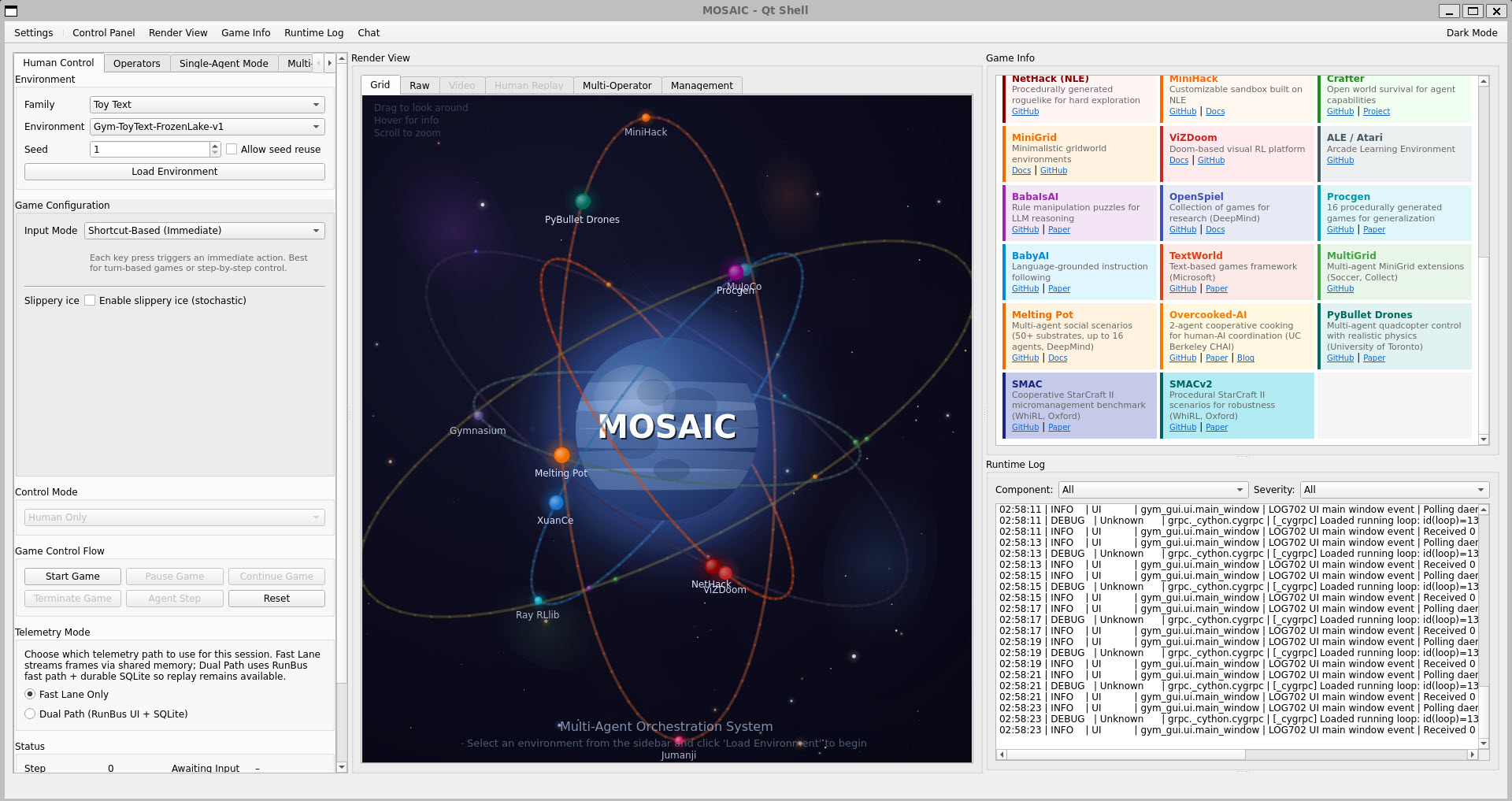
GUI launches but text shows as squares or is invisible
Symptom: The MOSAIC window appears but all labels, buttons, and menus show as squares or are completely blank:
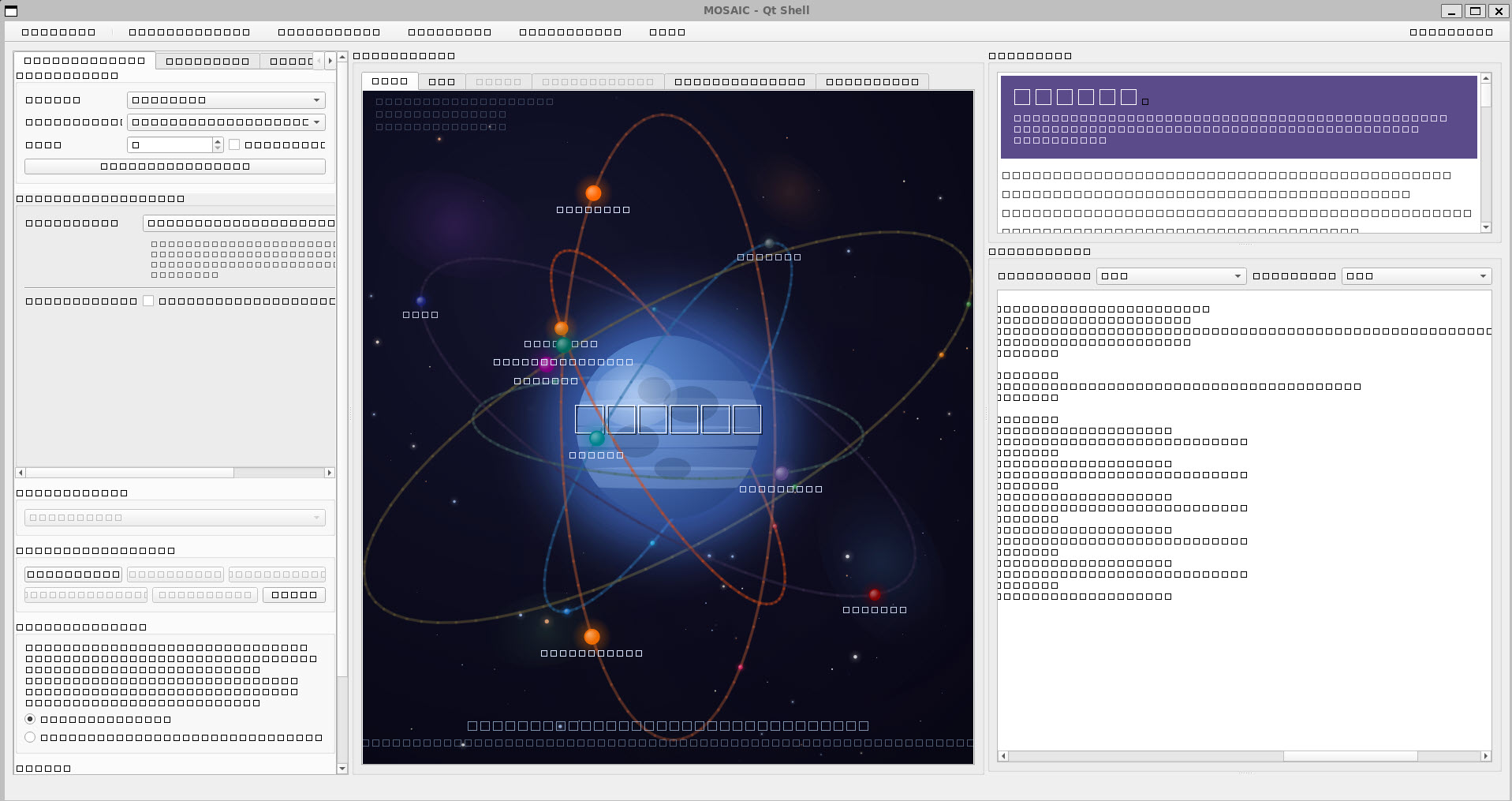
Cause: This happens when either:
The
fontconfigpackage is not installed – Qt uses fontconfig to discover system fonts, and without it, Qt cannot find any fonts at all.The font cache is stale – fonts were installed but
fc-cachewas not run, so Qt still cannot discover them.
This is especially common on WSL minimal installs, which ship with very few fonts and no fontconfig.
Fix:
# Install fontconfig and common fonts
sudo apt-get install -y fontconfig fonts-dejavu-extra fonts-liberation fonts-noto

# Rebuild the font cache (required after installing new fonts)
fc-cache -fv
Then restart the application. Text should render correctly:
PyQt6 – “Could not load the Qt platform plugin”
Error:
qt.qpa.plugin: From 6.5.0, xcb-cursor0 or libxcb-cursor0 is needed to load
the Qt xcb platform plugin.
qt.qpa.plugin: Could not load the Qt platform plugin "xcb" in "" even though
it was found.
This application failed to start because no Qt platform plugin could be initialized.
Cause: PyQt6 >= 6.5 requires libxcb-cursor0 for the X11 (xcb) platform
plugin. This library is not installed by default on minimal WSL distributions.
Fix:
sudo apt-get install -y libxcb-cursor0
If the GUI still fails to launch after installing libxcb-cursor0, check that
your display is configured:
# Check DISPLAY is set (WSLg should set this automatically)
echo $DISPLAY    # Should show :0

# If empty, set it manually
export DISPLAY=:0
CUDA / GPU not detected on WSL
Error:
>>> import torch
>>> torch.cuda.is_available()
False
Cause: On WSL, CUDA uses the Windows NVIDIA driver. Do not install the Linux NVIDIA driver inside WSL.
Fix:
# Verify the Windows driver is visible inside WSL
nvidia-smi

# If nvidia-smi works but torch doesn't detect CUDA, reinstall torch
pip install torch --index-url https://download.pytorch.org/whl/cu121
If nvidia-smi is not found, update your Windows NVIDIA driver from
nvidia.com/drivers.
Quick Reference: WSL System Dependencies
# Install all WSL-specific dependencies at once
sudo apt-get update
sudo apt-get install -y \
    libegl1 libgl1 libopengl0 libxkbcommon0 \
    libxkbcommon-x11-0 libdbus-1-3 libfontconfig1 \
    libxcb-icccm4 libxcb-image0 libxcb-keysyms1 \
    libxcb-randr0 libxcb-render-util0 libxcb-shape0 \
    libxcb-xfixes0 libxcb-xinerama0 libxcb-cursor0 \
    libnss3 libnspr4 libasound2 \
    libxcomposite1 libxdamage1 libxkbfile1 \
    fontconfig fonts-dejavu-extra fonts-liberation fonts-noto \
    jq